Why Is My WordPress Site So Slow (and Tricks to Fix It)
September 19, 2025
CONSUME CREATIVELY
This content is available in:
AUDIO
TEXT
If your website is turtling – and not in the good ninja turtle way, but in the slow-crossing-the-highway way – everyone’s noticing and cringing.
Why Speed Actually Matters (Beyond the Obvious)
Here’s the deal: while you’re sitting there wondering why your site is loading at turtle speed, your competitors’ sites are loading in milliseconds and stealing your sales. That sucks.
Your website is often the first introduction people have to your business. Think about it: if you walked into someone’s office and had to wait and wait and wait at an empty reception desk, what would you think? That’s exactly what’s happening when people wait for your website to load – except it’s a lot easier to hit the back button than it is to get in your car and drive to your competitor.
The SEO Reality
Google runs a popularity contest behind the scenes, and if you’ve got a slow-loading site, you’re not going to be homecoming queen. Google looks at signals like how long people stay on your website and how they interact with it when ranking your site among competitors.
The Conversion Crisis
Right now, people are searching the internet differently. So website traffic is dipping across the board. Bot traffic is skyrocketing – it now accounts for more than half of all website traffic. Some of those bots are bad guys but others are actually helping people who are using ChatGPT, Perplexity, and other AI apps to find information, and for the first time ever, Google searches are actually going down. This means people are solving their problems in chatbots, not on your website. Each human visitor that makes it to your site is more important than ever. You can’t afford to make them wait.
Mobile Loads Even Slower
Every website we analyze has at least roughly 25% mobile traffic, even in business-to-business scenarios. If nothing else, testing hundreds of sites has taught us slow sites on desktop perform even worse on mobile. And mobile users have shorter attention spans and less patience for loading times. If your desktop site takes 3 seconds to load and feels sluggish, that same site might take 6-8 seconds on mobile and feel completely unusable.
That all sounds really bad…we know. But good news! It can be fixed!
Lucky for you, there are free tools that’ll do the detective work so you know what’s wrong.
How to Tell If Your Site Is Actually Slow
Some people just have no clue their site is crawling. But if you’re reading this, you probably already suspect something’s wrong. Here’s how to confirm your suspicions:
GT Metrix (Monica’s Former Boyfriend)
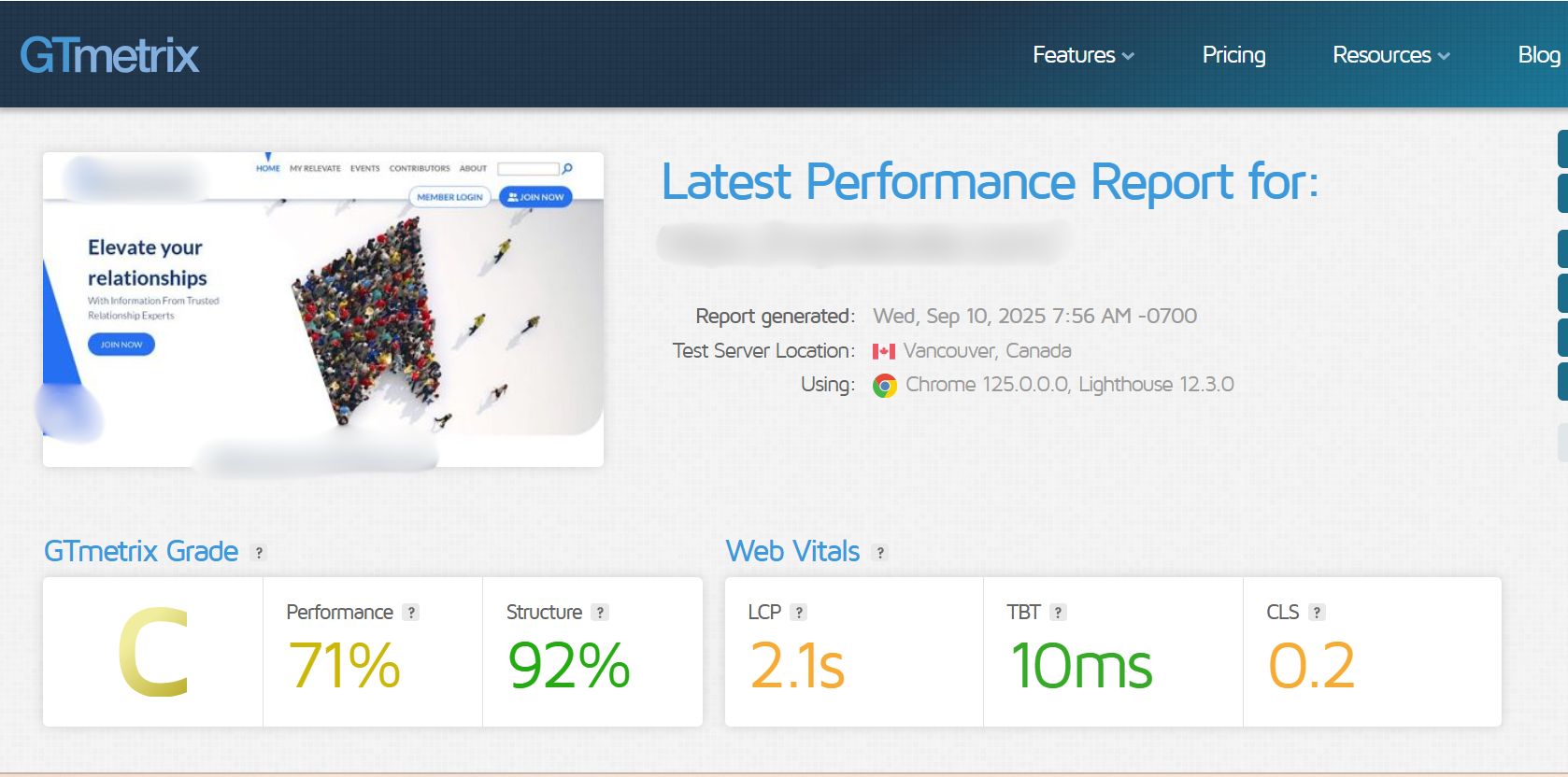
Monica called GTmetrix her boyfriend for a long time before she met ChatGPT and Claude. Because GT was her first problem solving love. Why do we love it? It gives you an easy-to-read letter grade and breaks down exactly what’s slowing you down – like telling you which images are way too big and explaining the most important things to do to improve your site speed.
We always start with GTmetrix because it’s easier to process than Google’s PageSpeed Insights, which can feel overwhelming with technical jargon. GTmetrix translates most things into terms you can actually understand.
Mobile-Specific Testing
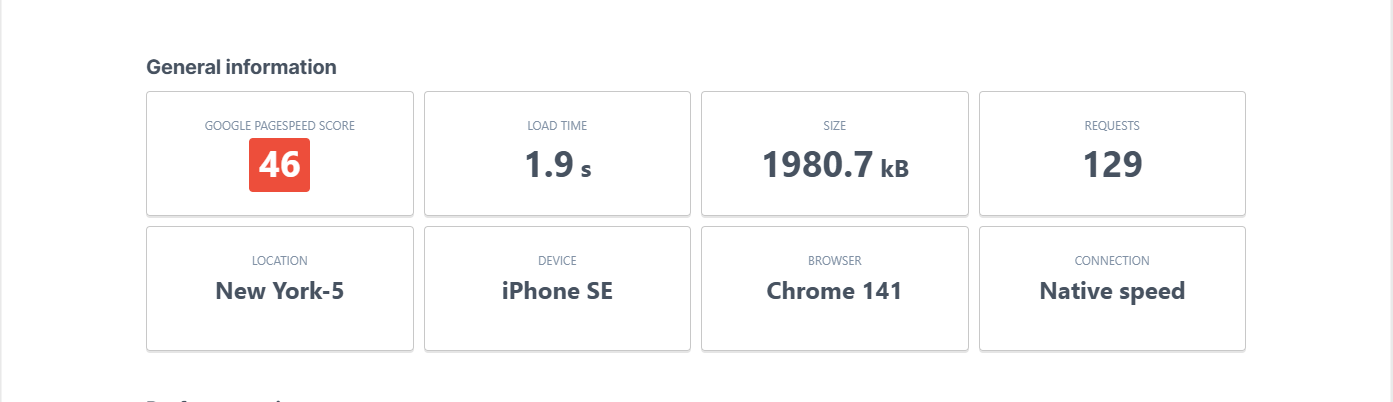
Some sites load different resources for mobile versus desktop. To diagnose how your site loads on a mobile device we recommend the free UpTrends Mobile Speed Test. It has very similar, but slightly less in-depth reports, to GTmetrix.
Google PageSpeed Insights
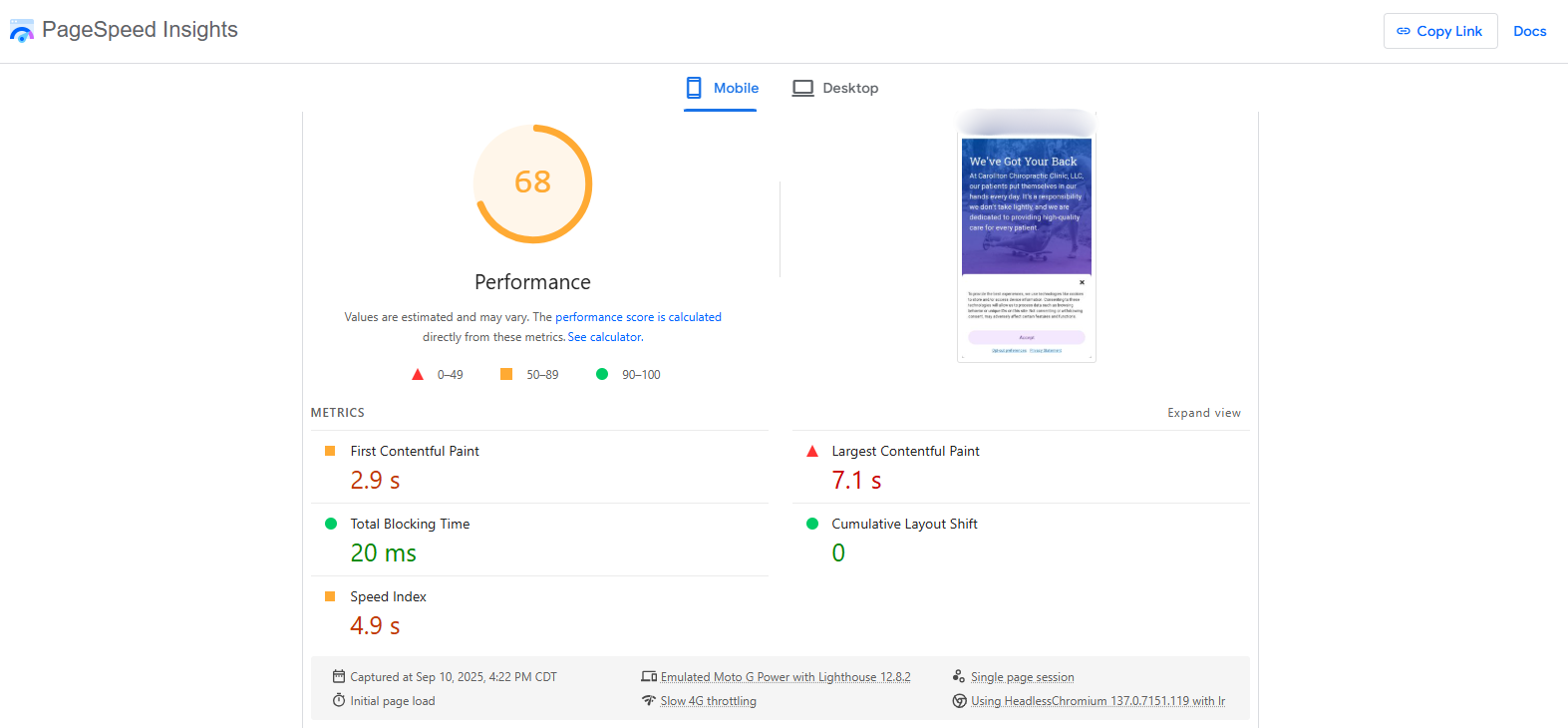
Once you’re comfortable with the vocabulary from GTmetrix, you can dive deeper into PageSpeed Insights for more detailed analysis.
Pro tip: All these tools are free, though GTmetrix does only allow a certain number of tests before you have to create a free account and it also has some pretty cool paid features we enjoy.
The Problems and How to Fix Them
Fair warning: We’re going to get a little nerdy, but stick with us. We’re going to break down common things we see, ways to fix them and what skill level you need to do it. Deal?
The skill levels for the proposed solutions are:
🐣Beginner – You can handle this yourself if you’re comfortable clicking buttons and following instructions. Think “I can update my iPhone without calling my nephew” level of tech confidence.
🛠️Intermediate – You’ll need some WordPress experience and aren’t afraid to break things (as long as you have a backup). This is “I’ve poked around in settings before and lived to tell the tale” territory.
⚠️Call a Professional – This requires technical knowledge you probably don’t have (or want). It’s the “I could learn to cut my own hair, but I’d rather pay someone who knows what they’re doing” situation.
Once you run your speed test, you’ll get a report that identifies specific issues. Here are the most common culprits slowing down WordPress sites and what you can do about each one.
Problem: Too Many Plugins
If each plugin has a stylesheet, a functions file, and admin components, and you get 50 plugins, you’re loading 150 new files. That’s a lot. And many sites load the components of every plugin on every page, even if that page doesn’t need a contact form or shopping cart functionality.
Too many plugins can also be a security risk. Outdated plugins leave holes in your site for hackers to exploit and slow load time by using outdated coding techniques.
Pro Tip: One symptom of plugin bloat is a slow loading admin section. So if even your admin section is turtling – go see how many plugins you have, that might be your issue.
Solutions:
Remove unused plugins (Intermediate🛠️)
This requires careful testing because you might break something. It’s like removing walls from a house – you don’t want to take out the load-bearing ones. Start with obviously unnecessary plugins and work your way up to ones you’re unsure about. Always backup your site first. And check your site after each plugin you deactivate to make sure you didn’t flat line it.
Choose quality over quantity (Beginner🐣)
Not all plugins are created equally. Some load quickly and others drag. When selecting new plugins, look for ones with good ratings (4+ stars with thousands of reviews beats 5 stars with two reviews), recent updates, and compatibility with your WordPress version.
Use plugins that load content conditionally (Intermediate🛠️/Call a Professional⚠️)
Some plugins now let you specify which pages they load on or turn features on and off. Formidable Forms now has this feature – it only loads on pages that actually have forms.
Choose a theme that handles common functions (Beginner🐣/Intermediate🛠️)
Look for themes that build in functionality you’d otherwise need plugins for – featured posts, home page slideshows, additional post types. Our philosophy is to avoid plugins when possible by building these features directly into the theme. This reduces the number of external dependencies and potential security vulnerabilities.
Problem: Unoptimized Images
If you right-click an image on your site and view it in a new tab, and it fills your entire screen – that’s your problem right there. Images should be sized for how they actually appear on your page, not uploaded at full resolution and scaled down with dimensions in your code.
Solutions:
Select a new image size, resize in WordPress or compress them externally and re-upload (Beginner🐣)
Use GT Metrics to identify oversized images. Then, if available in your site, select an image size more appropriate to the size the image is displayed on in the screen. This may not fix super high resolution images but it’s better than nothing! You can also edit the image in WordPress and scale the image to more appropriate dimensions. You can also compress them individually using tools like TinyPNG, Photoshop or Canva, and re-upload them. This may be tedious but it’s straightforward and improves load time dramatically.
Install image optimization plugin (Beginner🐣/Intermediate🛠️)
Plugins like Smush and ShortPixel compress images automatically. These compress images and convert them into a WebP format, which can reduce file sizes by up to two-thirds while maintaining quality.
Use WebP image format (Beginner🐣/Intermediate🛠️)
Not to be redundant but this advice is big enough we need to make sure you see it – save your images in WebP format using an online optimizer like TinyPNG or a plugin like Smush or ShortPixel. WebP is a far more efficient image format than JPG or PNG so the same image in WebP format will be on average 50-60% smaller than other image types. Plus it supports transparency AND animation. There really isn’t an excuse to use another image format.
Build optimization into theme (Call a Professional⚠️)
Tyler builds image optimization into our themes so uploaded images get automatically resized for their intended use – background images get sized for backgrounds, blog featured images get optimized for that specific use.
Problem: Heavy, Bloated Themes
You probably didn’t build your theme. Nor do you want to know how to build it. But unfortunately by choosing any developer’s theme you’re relying on them to maintain good code standards and respond to security threats.
Many themes load multiple stylesheets, separate JavaScript files, and entire libraries for features you might never use. Multipurpose themes are the worst offenders. These “Swiss Army knife” themes try to do everything – e-commerce, portfolios, blogs, learning management systems. They load all that code whether you need it or not.
No matter how well-intentioned the theme developer, your theme wasn’t built to last forever. Code that was lightweight five years ago isn’t lightweight anymore – web standards change, and what used to be optimized becomes bloated as browsers and WordPress evolve. Many theme developers abandon their themes or update them infrequently, leaving you stuck with increasingly outdated code.
Solutions:
Switch to a lightweight theme (Intermediate🛠️)
Look for themes described as “lightweight” or “fast” in reviews. Test the naked theme with speed tools before adding your content.
Turn off unnecessary features (Beginner🐣)
If your theme has toggles to disable features you don’t use (like shopping carts, payment options or learning management systems), use them. This prevents loading unnecessary code.
Avoid page builders (Beginner🐣)
Page builders like Elementor, Divi, and Beaver Builder slow down your site by loading extra code. We also see them break sites pretty regularly due to plugin conflicts, whereas Gutenberg, the drag and drop builder natively in WordPress, does not.
Problem: Cheap or Shared Hosting
We learned this the hard way. Years ago, our clients selected hosting for their own sites, usually on cheap shared hosting plans. Unfortunately, those plans share server resources with other sites. So your site is at the mercy of the security practices and traffic patterns of every other site on the server. If one site gets attacked or overwhelmed, your site suffers too. To make matters worse, when our cheap hosting plan sites go down you can email to ask for a status on the repair all you want but only to be told “when it’s up you’ll know because it will be up.” Thanks.
Then years later Monica spent weeks optimizing sites only to discover the hosting provider was the bottleneck. Their servers weren’t set up correctly to host WordPress sites efficiently. She dedicated hours of her days sending code snippets to the server admin to get their servers up to snuff – thankfully they worked! Needless to say, those sites got moved.
For more on hosting recommendations, check out this post.
Solutions:
Upgrade to managed WordPress hosting (Beginner🐣)
This mainly requires budget. Most larger hosting providers these days have a WordPress specific hosting plan. We use Nexcess for all our sites, they help migrate sites, provide dedicated resources and handle technical maintenance.
Pick the right hosting type for your site type (Beginner🐣)
Placing your site on a server with the right resources will speed up load time considerably. Sites with extras like shopping carts, learning management systems, or a very active membership section may need to be placed on a different tier hosting package or even a specific server set up to quickly manage routine tasks for that site type.
Monitor your uptime (Beginner🐣)
While this isn’t technically speeding up your site, it will help you troubleshoot and identify potential problems. We had one site that went down routinely for about an hour each week (not normal behavior) due to another site on the server being under constant attack. Monitoring helped us identify the pattern and move to better hosting. Try UptimeRobot if your hosting doesn’t include uptime monitoring. It’s super easy to set up and will send you an email if your site is unresponsive.
Problem: No Caching
Caching is like having dishes ready to serve instead of cooking everything to order. It creates a pre-built snapshot of your page that loads instantly instead of forcing your server to rebuild everything from scratch for each visitor – which slows down your site.
If you’re building a new site – wait on this. You don’t enable caching until you’re taking a website live. We have a love/hate relationship with these services. They’re amazing for performance, so of course we use them, but if they’re added too early in the build cycle it’s harder to troubleshoot problems because everything gets cached and minified. Plus, if you’re making a major update, caching can make changes take forever to show up. You might make an update at 9 AM and not see it until 5 PM. So you’re trying to figure out why it’s not working when actually, it’s totally working, it’s just cached!
Solutions:
Install a caching plugin (Beginner🐣/Intermediate🛠️)
We primarily use WP Rocket, but W3 Total Cache and LiteSpeed Cache are solid free options. You’ll need to read the settings and enable features gradually – don’t turn everything on at once. And check the site routinely in an incognito window when setting it up. You might look at your site while logged in and think everything’s perfect, but visitors see a broken cached version.
Set up a CDN (Intermediate)🛠️
A Content Delivery Network is awesome on so many levels. It helps your site load faster and adds an extra layer of protection from bots and bad actors. A CDN doesn’t move your whole site, but it does put cached copies of your static files (like images, CSS, and JavaScript) on servers all over the world. That speeds things up in three big ways:
- Closer is faster. Visitors get files from a server near them—so someone in London loads your site from Europe instead of waiting for data to travel from Iowa. Even data needs time to travel!
- Less stress on your server. The CDN serves up those cached files, so your main server isn’t slammed with every single request—especially helpful during traffic spikes.
- Optimized delivery. CDNs store pre-cached, compressed versions of your files, so browsers have less work to do and pages load quicker.
Cloudflare is our go-to—they even generate encryption randomness with a wall of lava lamps (seriously, it’s awesome and effective). Many hosting providers now offer CDN options too, so check your hosting dashboard before setting up a separate one.
Problem: External Scripts and Widgets
Some external scripts are necessary evils – Google Analytics, advertising pixels. But social media feeds, multiple YouTube embeds, and third-party widgets add processing time and rely on external servers to work properly.
Solutions:
Link instead of embed (Beginner🐣)
Tyler’s rule: link out to videos or social media feeds instead of embedding them whenever possible. And yes, you can still let people watch videos ‘on’ your site without the performance hit…
Use placeholder images for videos (Intermediate🛠️/Call a Professional⚠️)
If you’re not playing a video on load then don’t load them! Instead of loading multiple (or any) YouTube videos on one page, show cover images with play buttons. On click open a lightbox or send people to another page to watch the video. Then the video only loads when clicked.
Audit your scripts (Intermediate🛠️/Call a Professional⚠️)
Review what’s actually loading on your pages. This is like cleaning out the storage closet, you’ll be surprised how much unnecessary stuff has accumulated over the years. Do you need that Facebook tracking pixel? Are you loading Google Analytics more than once? Here’s a common one – if you have 10 embedded videos, it’s not just about the videos themselves, but all the YouTube infrastructure code they all require to play. It’s the same code for each video but embedding it for each forces it to load 10 times. Load it once and share it between the videos to dramatically decrease load time.
Problem: Unoptimized Database
Think of an unoptimized database like a sock drawer – over time old socks fall behind the drawer where you can’t see them. You keep adding new socks and the drawer gets harder to close because of all the hidden ones taking up space.
When you delete plugins, themes, or content, WordPress doesn’t always remove all the associated data. These leftover database entries accumulate over time, making your database larger and slower.
Solutions:
Use database optimization plugins (Intermediate🐣)
WP-Optimize and similar plugins can clean out old post revisions (because WordPress saves every single draft like a digital hoarder), spam comments, and orphaned data. Always backup first – messing with your database without a backup is like performing surgery without anesthesia. For everyone involved.
Start fresh when rebuilding (Call a Professional⚠️)
Sometimes your database is such a mess that it’s easier to start over than try to clean house. Export only what you actually need and import it into a clean WordPress installation. It’s like moving to a new apartment and leaving all the junk behind – liberating and terrifying at the same time.
Problem: Outdated PHP Version
Your site runs on PHP, outdated PHP creates a domino effect – plugin authors optimize for newer PHP versions, so if you stay on old PHP, you can’t update plugins, which creates security vulnerabilities and performance issues. Tyler compares it to never updating your phone’s operating system – eventually, apps stop working properly and security becomes a problem.
WordPress loves PHP 8.3 or higher as of fall 2025 but version 8.2 is still your friend (check current WordPress PHP requirements). Older PHP versions like 7.4 or 8.0 are end-of-life—no more security fixes, and they’re slower.
Solutions:
Ask your host to upgrade (Beginner🐣)
Most hosting companies can handle this for you – it’s literally their job. They might try to scare you with warnings about compatibility issues, but that’s what backups are for. Always backup first so you can roll back if something goes sideways.
Test before upgrading (Intermediate🛠️)
Some older plugins and themes throw tantrums on newer PHP versions. If you have access to a staging site, test there first. If you don’t have staging, cross your fingers and hope for the best (kidding – seriously, backup first).
Problem: Excessive Bot Traffic
Here’s the deal with bots: some are helpful little digital workers, others are just digital freeloaders eating up your server resources. If your site is loading slowly it could be a large influx of bot traffic bogging down the server. The trick is to decide if that traffic is valuable or something you need to block.
Rebecca recently had to play digital bouncer and block Perplexity AI from several client sites because it was scraping so aggressively it triggered auto-scaling, costing clients money. Which is sad because we love Perplexity! But love doesn’t pay the hosting bills and in this instance it wasn’t a good traffic referral source for the client.
Solutions:
Block unnecessary bots (Call a Professional⚠️)
This requires some technical know-how and potentially server access. You’re basically doing Rebecca’s job, playing digital bouncer, deciding which bots get into your site’s VIP section. Her go-to plugin for this is Defender Pro. Be careful though, don’t accidentally kick out the good bots like Google – that would be like firing your best employee.
Monitor your analytics (Intermediate🛠️)
Check your analytics to see if the bot traffic translates to actual referral traffic and sales. Some search engines or legitimate AI tools might be sending you business – people can shop on ChatGPT now! Look at your referral traffic and see what sources translate into sales. If a service like ChatGPT or Perplexity is costing you $50 a month in server costs but sending you $500 worth of business, that’s math you can live with.
The Reality Check
Your website is either fast enough to keep up with impatient humans or it’s not. There’s no participation trophy for ‘almost fast enough.’
Start with the beginner fixes – caching plugins, image compression, plugin cleanup. Test everything in incognito mode so you don’t fool yourself into thinking broken stuff is working fine. Then tackle the trickier stuff, or hand it off to people who get genuinely excited about PHP versions and server configurations.
If you hit the halfway point and realize you’d rather be doing literally anything else with your Tuesday afternoon – even helping actual three-legged turtles cross actual highways – that’s what we’re here for.
Who Manifested This Madness?

This fabulous human, that's who.
Monica Maye Pitts
Monica is the creative force and founder of MayeCreate. She has a Bachelor of Science in Agriculture with an emphasis in Economics, Education and Plant Science from the University of Missouri. Monica possesses a rare combination of design savvy and technological know-how. Her clients know this quite well. Her passion for making friends and helping businesses grow gives her the skills she needs to make sure that each client, or friend, gets the attention and service he or she deserves.