How to Make an ADA Complaint PDF (And WHY?!?)
October 24, 2025
CONSUME CREATIVELY
This content is available in:
AUDIO
TEXT
Your PDFs are probably breaking the law right now.
Not in a dramatic, FBI-busting-down-your-door way, but in a quietly-excluding-people-who-need-your-information way.
Here’s the deal: That innocent-looking PDF sitting on your website? The one you uploaded because it was easier than actually adding things to the site? It’s not just a digital piece of paper anymore. It’s basically a mini-website that needs to work for everyone – including people using screen readers, keyboard navigation, or other assistive technologies.
And if you’re like most people, you’ve been creating PDFs the same way since 2005, blissfully unaware that there are actual rules about this stuff now. And we’re about to ruin those carefree PDF-making days forever. But you’re also going to learn how to fix it without losing your mind.
Table of Contents
The rules changed but that’s pretty OK.
No more exporting PDFs from Word, slapping it on your website and calling it a day. Those simpler times are gone, my friend. The government decided (quite some time ago actually) that digital documents on your website need to work for everyone, not just people who can see perfectly and use a mouse with laser precision.
And that’s not really a bad thing.
Why wouldn’t you want everyone to be able to use your website? About 26% of adults in the US have some type of disability. That’s a lot of people who might want to read your content, buy your stuff, or donate to your cause. Excluding them through ignorance isn’t just legally risky – it’s just not a great way to treat people.
Now PDFs linked from your website need to work for people who:
- Use screen readers to “hear” your content
- Navigate with keyboards instead of mice
- Need high contrast to read text
- Rely on document structure to understand your content
And no, your current PDFs probably don’t do all of that. Sorry.
What Makes a PDF Actually Compliant
In a nutshell an ADA-compliant PDF allows a screen reader to navigate it just as easily as a sighted person can read visually. Think of it as building a website – everything needs proper structure, labels, and organization.
1. Proper Tags and Structure (Like HTML for PDFs)
Every meaningful element needs to live inside something called a “Tags tree.” If that sounds technical, it is. But here’s what it means in human terms:
- Headings use a logical hierarchy – H1 for main titles, H2 for section headers, etc. (Not just “make the text bigger and bold”)
- Paragraphs are tagged as paragraphs – Screen readers need to know where one thought ends and another begins
- Lists are actually lists – Not just bullet-point icons you copied and pasted, but using your software’s actual list formatting
- Tables have proper headers that clearly identify what each column and row contains – so screen readers can announce “Column 2, Row 3: Budget Amount” instead of just reading random numbers. No fake “layout tables” unless they’re properly marked as decorative
You ensure these things happen in three ways. First, you use the headings and formatting tools provided for you in the word processing program. Second, you do a few extra clicks on your table to identify its header row. Third, you export the PDF with the right settings to keep the tags. That’s all pretty manageable, right?
2. Reading Order That Makes Sense
Your PDF should flow logically from top to bottom, left to right – the way humans actually read. This seems obvious, but you’d be amazed how many PDFs jump around like a caffeinated squirrel.
Plus: If your PDF has clickable stuff (links, form fields), the tab order needs to be set properly so keyboard users can navigate predictably.
3. Images That Actually Help Instead of Confuse
All meaningful images need alt text – descriptions that screen readers can announce. “Chart showing 30% increase in sales” instead of “pic_chart_2”.
Decorative images get marked as decorative – So screen readers skip your pretty background flourishes and focus on actual content.
No images of text unless absolutely necessary (and if you must, provide alt text describing the text).
It’s super easy to do this. In most programs you’ll just alt click or right click and select “Alt text” from the menu. Then describe your image like you would to someone wearing a blindfold.
4. Links That Tell You Where They’re Going
No “click here” links. Instead: “Download the 2024 annual report” or “Learn more about our accessibility services.” Screen reader users often navigate by jumping from link to link – they need context.
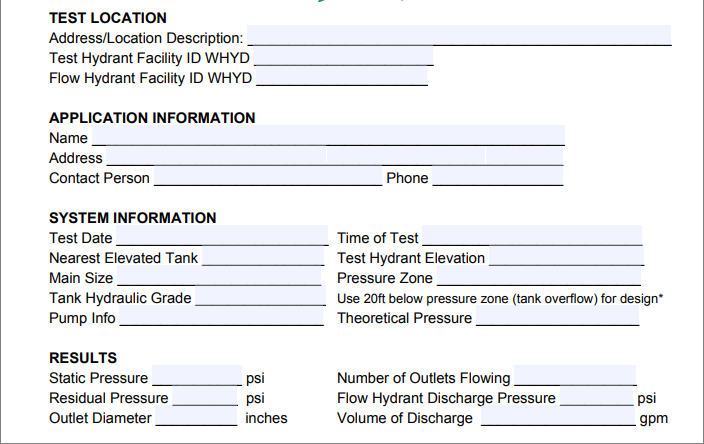
Form fields need clear labels – “Name,” “Email,” “Comments” – not just placeholder text that disappears in the field.
5. Colors That Don’t Exclude People
Text needs sufficient contrast against its background (usually 4.5:1 ratio for normal text).
Color can’t be the only way you convey information – “Required fields are in red” doesn’t help someone who can’t see red.
6. Set Document Properties
Set a proper title in the document properties – not just “Document1.pdf”. And the file name will not automatically be assigned as the document title in all software, you will have to set it separately.
Specify the language so screen readers know whether to announce content in English, Spanish, etc.
Why Your PDF Checker Isn’t Actually Magic
Automated accessibility checkers are helpful, but they’re not mind readers. They can scan your document’s guts to see if you have the right technical pieces (tags, alt text, proper structure), but they can’t tell if those pieces actually make sense to a human.
What Automated Tools Can Catch:
- Missing tags and structure
- Images without alt text
- Color contrast ratios
- Missing document properties
- Obvious structural problems
What They Can’t Tell You:
- If your alt text actually makes sense (“image1.jpg” technically counts as alt text, but it’s useless)
- If your images are displaying text that’s not in the alt tag
- If your reading order flows logically
- If your link text is descriptive
- If your table headers actually relate to their data
- If your content makes sense to someone who can’t see it
Translation: You need both automated tools AND human brains to get this right.
The “Am I Completely Screwed?” Quick Test
Before you panic about your entire PDF library, try these quick checks on a few documents:
Text Selection Test
Try selecting text in your PDF. If clicking and dragging selects the entire page as one giant image, you’re looking at a scanned document that’s basically a photo. Screen readers can’t read photos.
Good news: If you can select individual words and sentences, you’re already ahead of a lot of PDFs out there.
Tag Check (Adobe Users)
In Adobe Acrobat (not Reader – you need the full version), look for tags. An untagged PDF is almost always inaccessible. If you see a Tags panel with actual structure, someone at least tried to make it accessible.
The Tab Test
If your PDF has clickable elements, try navigating with just the Tab key. Does it jump around randomly or follow a logical path? If it’s jumping all over like a pinball, the tab order needs work.
Understand the Title II rules & exceptions.
Here’s what we see happening: Organizations are trying to figure out how to fix hundreds of PDFs at once. Meanwhile, half the original files are lost, the person who created them left the company, and everyone’s having a collective meltdown.
First of all, everyone take a deep breath.
Not all of those PDFs may need to be adjusted. If they aren’t active resources they can be left alone. Title II has a publicized exception for archived items and documents. So as long as you don’t update them after your compliance deadline they are grandfathered in.
Second, as much as you love them, people might not even be looking at all those PDFs. And if that’s the case, they may fall under the archive exception as well. Google Analytics natively tracks PDF downloads as page views, you just have to enable it to see it. It’s NOT HARD. Just a click or two.
Take a look at what people actually download regularly and fix those PDFs. The others you are only required to adjust if someone asks you for an accessible document.
Start Now, Thank Yourself Later
Start making new PDFs compliant now. It’s really not that much more work once you know the workflow – just a few extra clicks and some different habits.
Creating new compliant PDFs only takes a few more minutes once you learn the process. That’s it. The process isn’t rocket science – it’s just different from what you’re used to.
The Workflow Overview
Never fear, we have tutorials for these steps!
Step 1: Learn to create accessible documents in your source application (Word, Google Docs, etc.)
Step 2: Export with the right accessibility settings
Step 3: Run an automated checker to catch obvious problems
Step 4: Do a manual review for logic and usability
Step 5: Fix any issues and re-export if needed
Step 6: Pat yourself on the back for being a decent human
Notice how “panic about your existing PDF library” isn’t on that list? That’s intentional.
This Actually Makes Your Content Better
Funny thing about accessibility: When you’re forced to organize your content logically, write descriptive headings, and explain your images, your documents get clearer for everyone.
Accessible PDFs are:
- Better organized (thanks to proper heading structure)
- Easier to navigate (thanks to logical reading order)
- More informative (thanks to descriptive links and alt text)
- Findable by search engines (properly tagged content gets indexed better)
So you’re not just checking a compliance box – you’re making your content actually work better for everyone.
Ready to Stop Making Inaccessible PDFs?
The good news: Once you learn the workflow, creating accessible PDFs becomes second nature. Like learning to parallel park – terrifying at first, then just something you do without thinking.
The better news: We’ve created step-by-step guides for the two most common workflows:
- Microsoft Word users: Complete guide to creating accessible PDFs in Word
- Google Docs users: Google Docs + Grackle workflow for accessible PDFs
Both guides include the automated checker steps, manual review process, and exactly which buttons to click. Because life’s too short to figure this stuff out through trial and error.
Start with your next PDF, not your entire library. Future you will thank present you for not waiting until this becomes an emergency.
Who Manifested This Madness?

This fabulous human, that's who.
Monica Maye Pitts
Monica is the creative force and founder of MayeCreate. She has a Bachelor of Science in Agriculture with an emphasis in Economics, Education and Plant Science from the University of Missouri. Monica possesses a rare combination of design savvy and technological know-how. Her clients know this quite well. Her passion for making friends and helping businesses grow gives her the skills she needs to make sure that each client, or friend, gets the attention and service he or she deserves.