How to Create a QR Code for Your Business Card and Pretty Much Anything Else
November 1, 2024
CONSUME CREATIVELY
This content is available in:
AUDIO
TEXT
A few weeks ago, I gave some tips on what to include on a business card and briefly mentioned QR codes, promising to dive deeper later. Well, here we are! If you are looking to learn all about creating a qr code for business cards-you’re in the right spot. While the title says “for your business card,” QR codes can really be used for anything.
At its core, all you really need to get the job done is a QR code generator and a link. But, like anything else, there are a few things to consider to make sure you’re setting it up the right way—both now and for the future. That’s what this post is all about!
We’ll cover:
What is a QR code and how does it work?
(I’ll keep this short).
QR code stands for “Quick Response” code. Fun fact – they originated from Japan and were used in the automotive industry. You probably know that QR codes are just scannable images that direct users to specific content when using a smartphone. Some older smartphones may require an app to use the QR code but recent models all just use the camera app and it works like magic.
When do you need a QR Code for business cards or otherwise?
Let’s get this straight – you don’t HAVE to have one.
They’re not meant for everything.
So be smart and use it in the right spots:
- NO on a digital flier you can’t scan something on your phone with your phone, give them a clickable link instead. Also no on billboards, and only occasionally on a yard sign. People drive past those, they can’t scan a QR code while driving. IF your yard sign is in a spot where people walk past it often then a QR code is appropriate. No to vehicle wraps if all you’re doing is driving around town, that’s another instance where you just want to list your phone number and domain name.
- YES on a business card, printed brochure or magazine ad, printed signup form, survey or review request, or a table topper for more information. If your vehicle is parked, like a job site for longer periods of time it could make sense to have a QR code on it. Use it for event check ins, donation links or to offer more information on printed materials.

Picking the right QR Code Generator
Picking the right QR code generator to create a qr code for business cards can open up a bunch of cool features to enhance your code’s design, make it more user-friendly, and let you track its performance-transforming your QR codes from a box with weird dots in it into a powerful tool.
Common Features
- Dynamic vs Static
- Customization
- Output Format
- Analytics
1.Dynamic vs Static
Since this is my blog, and I’m allowed to have opinions on it; my advice is – when it comes to picking your QR code generator choose function over form:
You need to be able to change it.
Yup. It can be all nature of colors, sizes, have your logo in the middle but ultimately if you can’t change the URL it links to – it sucks.
Some generators are static – You don’t want this.
You create the QR code for business cards and it’s forever going to point to that one location…and that can lead to problems down the road. Like if your QR code is on the side of a trailer and you change the URL for your site or landing page and then have to pay to repaint or wrap the trailer. LAME, ya?
Or if your event sign up page changes and you have brochures left over from last year…that’s also a mega bummer.
Use a dynamic QR Code Generator
Now, in both of those instances, you could potentially create a redirect on your website to mitigate the problem-but not always. And we want to plan for the future, so you want to pick a dynamic QR code generator that will let you change the URL the code links to and potentially even track the usage.
2. Customization
QR Code generators all have their own take on customization. Some are simple, while others, especially on paid plans offer the sun, moon and stars. Some customization features to look for (in case you want them) are:
- Colors – changing the color of the code and the background. Some generators offer a transparent background or even an image background option.
- Shapes -adjusting the pattern of the QR code, rounding corners even adjusting the shape of the code itself from a traditional square into a circle or more branded shape
- Logo Integration – usually places your logo in the center of the code
- Frame or Calls to Action – some generators allow you to add a frame around the QR code with a CTA like “Scan Me!” to encourage engagement.
3. Output Format
If you plan on using your QR code for business cards or other printed materials then you’ll need a high resolution, scalable file like a PNG, SVG, EPS or PDF for print purposes. Check with your designer or design program to learn which they prefer.
4. Analytics
Some people are set it and forget it marketers. If you’re one of those who couldn’t care less about the data, you can just skip this evaluation factor all together. For those of you who do want to track and make sure your marketing is working, here are the tracking features often offered by QR code generators:
- Number of Scans – like how many times the QR code has been scanned overall or how many times it was scanned by a unique device.
- Location Data – the physical location of where the QR code was scanned.
- Time and Date of Scans – day and time of day people are scanning the QR code.
- Device Information – type of device used to scan the code (smartphone, tablet, desktop, etc), as well as operating system and browsers used when scanning.
QR Code Generator Comparison
I took a look at different generators and even reviewed the ones we use at MayeCreate to give you a leg up in your hunt for the perfect solution.
Honorable Static Generator Mention: Canva
Because Canva is so popular and we talk about it a lot I feel like I need to at least cover the QR code option offered within Canva. It is free to use within Canva and it’s really easy. You can do some basic customization like background and foreground colors and margins.
BUT and this is a big but…it’s static-so you can’t ever change the link location and it doesn’t offer much in the way of analytics either. If you need the ability to redirect URLs or create dynamic QR codes, you would need to use a third-party QR code generator that offers dynamic QR code functionality.
Free VS Paid QR Dynamic Generators
The biggest difference between free and paid dynamic QR generators are customization, analytics and number of QR codes you can create. If you only need a few QR codes and you don’t need them to be super fancy or have a ton of tracking, a free service can totally do the trick. Paid options generally offer more features and flexibility, while free options can be suitable for basic needs or small-scale use.

QR Code Generator [FREE] & [PAID]
- Unlimited dynamic QR codes
- Basic customization options
- Limited analytics
- No expiration on codes
- Advanced design and tracking options with the paid plan.
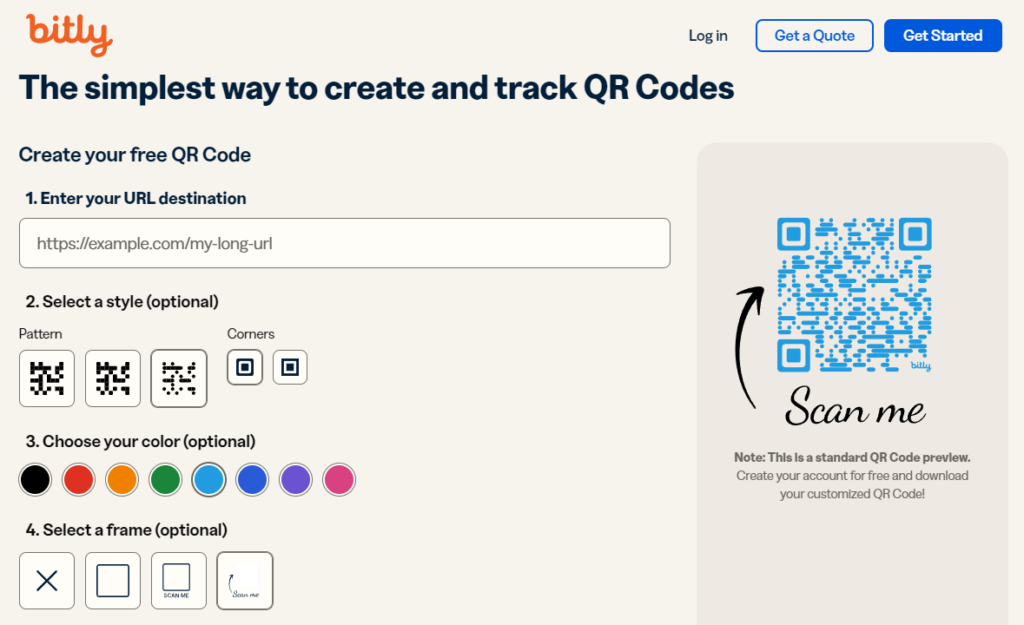
Bitly [FREE] & [PAID]
- Code redirection
- Easy customization
- Limited tracking
- 2 per month for free
- Paid plan offers additional codes per month and customization as well as improved tracking and data retention.

MobiBrix [FREE]
- Unlimited dynamic QR codes
- URL redirection
- No customization of QR codes
- No expiration on codes

QRCode Dynamic [FREE]
- Free plan with 3 dynamic QR codes
- Basic customization with 16 templates to start from
- Limited tracking
- URL redirection
- No account required for basic use but your code will not be saved
- Paid plan offers unlimited saved QR codes and data retention plus additional organization features
Implementation Tips & Tricks
Make sure it’s big enough to scan
Usually you’ll want your QR code to be about 1 inch x 1 inch but in some cases you can make them smaller. Just know the smaller the QR code is, the closer a person has to hold their phone to scan it. For example, a business card could have a smaller code because people will hold it in their hand to scan it with their phone, while a banner would need a larger code because people will stand farther away while scanning.
Test the QR code on multiple devices before printing
Set your design program to 100% zoom and scan the QR code on your screen from the same distance your audience would. This will help ensure it works at the planned size and directs you to the correct destination. If you can, print a full-size version and test it again before sending it for professional printing.
Make sure the code leads to a mobile-optimized page
Because scanning the code is only the first step in the process, right? So make sure the place they land is organized and easy to read.
- If you’re sending them to a page on your website make sure all the information is displayed in the correct order and is legible on a mobile device.
- If you’re sending them to a PDF, PLEASE for the love of Pete make the text big enough that people don’t have to pinch and zoom to read the darn thing.
- If you’re sending them to a Google Doc (which isn’t necessarily a bad thing) DON’T use tables. A Google Doc automatically adjusts display to make it easier to read on mobile devices, but tables don’t adapt for mobile display so people have to scroll horizontally to get to the information they want to read.
Place codes in visible, easy-to-scan locations
A QR code that’s hard to find or awkward to scan defeats its purpose. You’re already asking people to scan, click AND read…don’t make them think too!
Keep design clean and functional
Over designing anything just detracts from the purpose of the message. No need to go overboard just because you can. The code should fit in with your design. It often stands out naturally so you don’t need to do a bunch of work for it to be seen by adding a bunch of flair.
Now You’re Ready, Set, GO!
It might feel like there’s a lot to think about when it comes to creating QR codes for business cards or other materials effectively—whether it’s choosing the right generator, testing on multiple devices, or making sure it leads to a mobile-friendly page. But once you’ve got the basics down, they can be an awesome tool for connecting with customers and streamlining your marketing efforts. Now it’s your turn to take action! Try out some of the tips and best practices we covered, and don’t forget to test, test, test before going live.
Who Manifested This Madness?

This fabulous human, that's who.
Monica Maye Pitts
Monica is the creative force and founder of MayeCreate. She has a Bachelor of Science in Agriculture with an emphasis in Economics, Education and Plant Science from the University of Missouri. Monica possesses a rare combination of design savvy and technological know-how. Her clients know this quite well. Her passion for making friends and helping businesses grow gives her the skills she needs to make sure that each client, or friend, gets the attention and service he or she deserves.